How to install HappyMod APK
A complete Android walkthrough for the HappyMod installer — download checks, unknown sources by phone brand, BlueStacks on PC, updating later, and fixes for every common install failure.
Quick facts
- Website
- happy-modz.com
- App
- HappyMod
- Version
- V3.4.0
- Package name
com.happymod.apk- Platform
- Android
- File type
- .apk
- Min Android
- 5.0+
- Not affiliated with
- Google Play / fake mirrors / “official” claims
Download the HappyMod APK
Open the file from Downloads
Allow unknown sources for this source only
Confirm Install
Turn unknown sources off
Android
Phone or tablet — main path
iPhone / iPad
No native APK install
Windows / Mac
Only inside an Android emulator
Before you start
Check Android 5.0+, leave free space well above 20 MB, and install one build at a time (standard or Extra — not both at random).
Read Extra vs standard first, including the pre-download checklist. “HappyMod Pro” in search is usually a label, not a third install we list.
This page covers Android phones and tablets, plus PC/Mac through an Android emulator. For iPhone and Chromebook limits, see the device notes on the home page.
Install steps
- 1. Download from the home page
Prefer the buttons there. Match file name, version V3.4.0 (or Extra 1.0.4), and size before you continue.
- 2. Open the .apk
From Downloads, open the file. If Android asks which app should open it, choose Package Installer or Files.
- 3. Allow this source once
When prompted, open settings, allow that source only, go back, then tap Install.
- 4. Finish and check
Open HappyMod. If app info is available, look for
com.happymod.apk. Turn unknown sources off afterward — see what to do after you install.
Samsung, Xiaomi, Pixel, Huawei, and other phone menus
Labels change by brand and Android skin, but the rule is always the same: allow only the one app that is installing the APK, then turn that permission off again once HappyMod is installed.
- Samsung (One UI)
Settings → Apps → tap the three-dot menu → Special access → Install unknown apps → pick Chrome or My Files → turn Allow from this source on. Samsung phones often also run their own Play Protect–style scan during install; read it, then continue if the file matches this page.
- Xiaomi / Redmi / Poco (MIUI or HyperOS)
Settings → Apps → Manage apps → pick your browser or Files app → Install unknown apps → enable. Some Xiaomi builds hide this under Privacy → Special permissions instead — search “unknown apps” in Settings if you can’t find it.
- Pixel / stock Android
When the installer asks, tap Settings on the dialog → allow that source → return → Install. Stock Android usually shows the cleanest version of this prompt.
- Huawei / Honor (where available)
Settings → Security & privacy → More security options → Install apps from external sources → enable for one source only. Some newer Huawei devices without Google services may show extra warnings for any sideloaded app — that is expected, not specific to HappyMod.
- Oppo, Vivo, OnePlus, Motorola, and others
Look for “Install unknown apps,” “Install from unknown sources,” or “Special app access” inside Settings → Apps or Settings → Security. The wording differs; the toggle you want always applies to a single app (your browser or Files), not the whole phone.
Family Link and supervised accounts
Google Family Link and some school or work profiles can hide or grey out “install unknown apps” completely. If the toggle is missing rather than just off, a parent or admin has to change device or account settings — this guide has no way to bypass that, and we will not point you toward tools that claim to.
On a fully supervised child account, sideloading may be blocked at the account level even after you dig through every settings menu. In that case, the practical options are: ask the account owner to adjust supervision settings, or use a personal, unsupervised device you control.
Avoid random “Family Link bypass” or “supervision remover” downloads from search — they are a common trap unrelated to installing HappyMod safely, and outside what this guide covers.
Installing on PC or Mac with an Android emulator
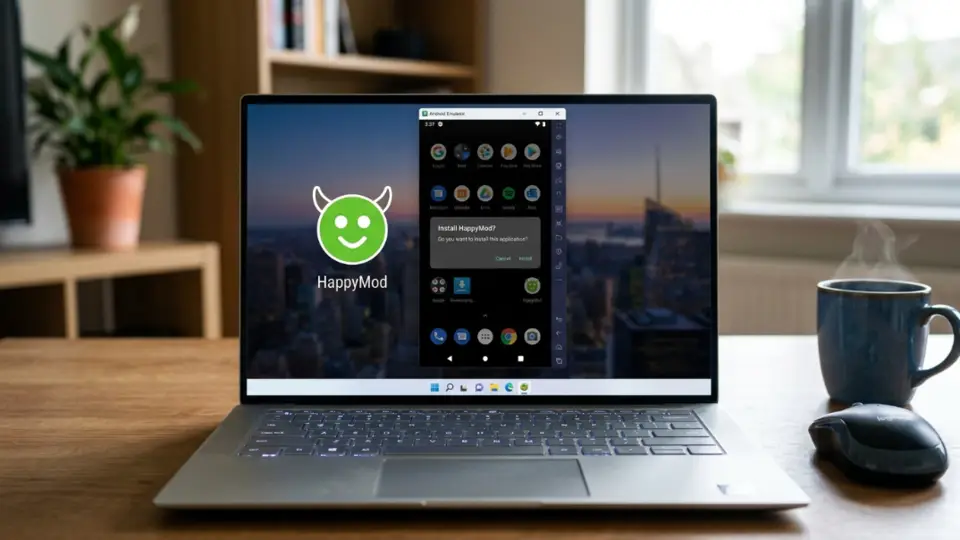
HappyMod is not a Windows or Mac program, so there is no direct .exe or .dmg install. The practical path is running an Android emulator on your PC or Mac, then installing the exact same HappyMod APK inside it — the install screens look almost identical to a phone.
- 1. Install an Android emulator
Download a well-known Android emulator (BlueStacks is the most common choice for this) directly from its own official site, then install and open it like any other desktop program.
- 2. Finish the emulator’s first-time setup
Let the emulator finish its own setup screens. You do not need to sign in with your main Google account just to install a single APK.
- 3. Get the HappyMod APK inside the emulator
Open the emulator’s built-in browser and download the same file from this site’s home page (standard V3.4.0 or Extra), or drag the .apk you already downloaded on your PC onto the emulator window.
- 4. Install the APK inside the emulator
Most emulators install a dropped .apk automatically, or offer an “Install APK” button in their file manager or toolbar. Confirm the install prompt the same way you would on a phone.
- 5. Open HappyMod from the emulator’s home screen
Once installed, HappyMod appears as an app icon inside the emulator, not as a normal Windows or Mac application outside it.
After you install: first open and permissions
The first time you open HappyMod, expect one or two permission prompts — typically storage/media access and notifications. Allow only what the app is actually asking for; there is no legitimate reason a mod browser needs your contacts, SMS, or call log.
If your phone’s app info screen shows package names, open Settings → Apps → HappyMod and confirm it still reads com.happymod.apk. A different package with a similar icon is a sign you installed the wrong file.
You generally do not need to create an account just to browse and install listings. Treat any login screen that asks for unrelated personal details with suspicion.
If HappyMod opens but a download inside the app stalls or fails, that is not the same problem as a broken HappyMod APK install. Confirm storage permission, free space, and network, then force-stop HappyMod and clear its cache from App info. Retry one listing. Clearing Google Play Store or Play services cache sometimes helps on phones where Play components interfere with background downloads — optional, and only if the steps above fail.
Remember: succeeding at installing HappyMod does not make every listing inside trustworthy. Each mod you download later is a separate choice and a separate risk — see Is HappyMod safe?.
Updating HappyMod later
HappyMod does not check for updates the way a normal Play Store app does. To update, come back to the homepage, download the current build (V3.4.0 standard, or 1.0.4 for Extra), and install it over your existing app the same way you installed it the first time.
If Android says the new file conflicts with what is already installed (a rare signature mismatch), uninstall the old HappyMod first, reboot if needed, then install one clean, current file.
We only track the current build listed here — see why we don’t host an old-version archive if you’re looking for an older release.
When install or in-app downloads fail
Most failures trace back to a bad download, low storage, an old copy still installed, a blocked setting, a mismatched update, or — after HappyMod already opens — a permission/network issue with listings inside the app. You do not need a “Pro” APK to fix these.
| What you see | Likely cause | What to try |
|---|---|---|
| App not installed | Likely cause Old HappyMod still on the phone | What to try Uninstall the old app, reboot, install one clean APK |
| Parse Error | Likely cause Broken or incomplete download | What to try Download again as .apk; check the size; do not rename random files to .apk |
| Play Protect blocks the install | Likely cause Warning about apps outside Play | What to try Read the details; stop if the source is unclear; see the safety guide if you already checked the file |
| Not enough storage | Likely cause Phone almost full | What to try Free a few hundred MB, clear junk downloads, try again |
| Blocked by admin, or toggle is missing | Likely cause Family Link or a work/school profile | What to try Ask the account owner or admin to change supervision, or use a personal device you control |
| Opens then crashes | Likely cause Bad file, permissions, or battery saver killing the app | What to try Reinstall one build; allow needed permissions; check if the phone froze the app in the background |
| App opens, but downloads inside HappyMod fail | Likely cause Missing storage permission, full storage, weak network, or stuck app cache | What to try Allow storage/media; free space; force-stop + clear HappyMod cache; retry one listing. Optional: clear Play Store / Play services cache if background downloads stay broken |
| Downloads inside HappyMod fail after a phone/Android update | Likely cause System update reset a permission or left Play/HappyMod caches stuck | What to try Re-check storage/media permission for HappyMod, then force-stop + clear HappyMod cache. Optional: clear Play Store / Play services cache. Reboot once if it still stalls |
| “HappyMod doesn’t work” / nothing downloads | Likely cause People mix up APK install failures with in-app listing failures | What to try Confirm whether the APK installed and opens. If it opens, treat it as an in-app download issue (rows above). If it never installs, use the rows for Parse Error / Play Protect / Family Link |
| Update won’t install / “package conflicts” | Likely cause Old build has a different signature than the new file | What to try Uninstall the old copy first, then install the current file fresh — see updating HappyMod above |
| Icon, name, or package looks different after install | Likely cause You likely installed a lookalike, not this file | What to try Uninstall it, redownload from this site’s home page, and check the package name in app info |
| Download finishes but nothing opens when tapped | Likely cause Browser saved it with the wrong file type, or blocked the file | What to try Open it from the Files app instead, confirm the .apk extension, or download again |
| Drag-and-drop into BlueStacks doesn’t install anything | Likely cause Emulator didn’t register the file, or it isn’t a real .apk | What to try Use the emulator’s built-in “Install APK” option in its file manager instead of drag-and-drop |